CanAI features
A tour of what CanAI can do in wp-admin and over MCP. Start with the overview below, then open the page for the area you need.
Admin surfaces
| Surface | Where | What it does |
|---|---|---|
| Welcome | CanAI → Welcome | Orientation, AI setup CTA, role-based prompts |
| All Templates | CanAI → All Templates | CPT wpcanai_template list |
| AI Client | CanAI → AI Client | MCP endpoint, API keys, skills, guardrails, tools |
| Settings | CanAI → Settings | Plugin options |
| Tools hub | CanAI → Tools | Links to Editor, Sideloader, Export/Import, Presets, Diagnostics |
| Editor | On the page or template's own edit screen (or Tools → Editor) | Twig HTML/CSS/JS authoring for pages & templates |
| Image Sideloader | Tools → Image Sideloader | Pull remote images into the media library |
| Export / Import | Tools → Export / Import | JSON backup and restore |
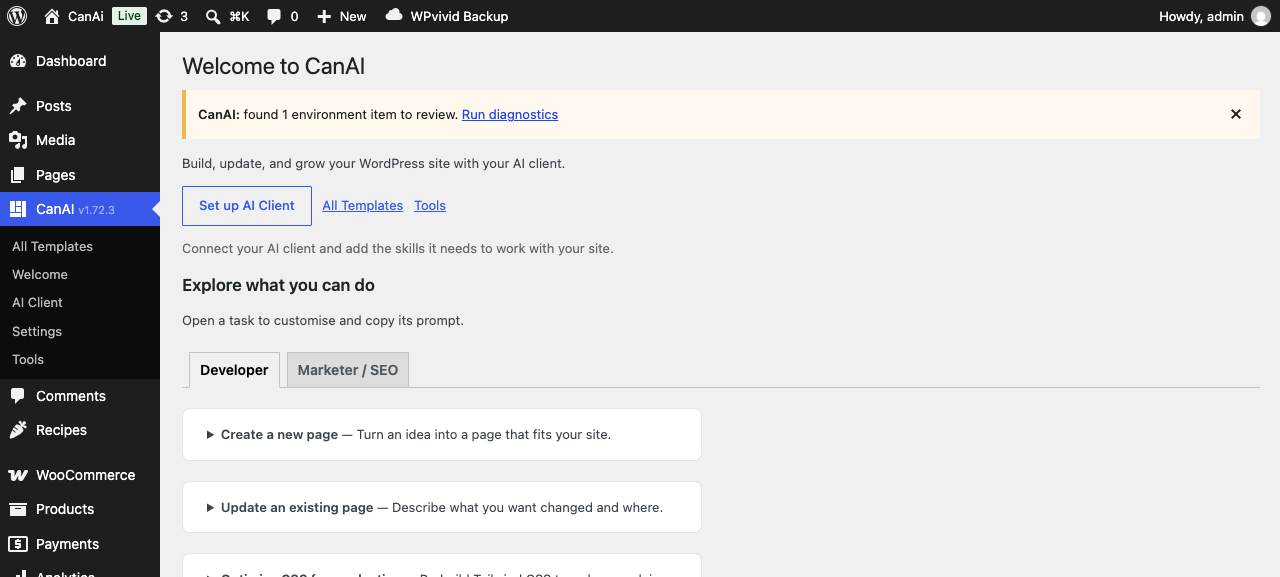
Welcome screen.
Deeper guides
| Area | What you'll find |
|---|---|
| Templates and layouts | Template types, layouts, delegate pages, the editor, template list columns |
| Authoring with Twig | Twig context, Tailwind, Alpine, Lucide, CSS/JS tabs, and compiled Tailwind for Lighthouse scores |
| Blocks and charts | Block-authored posts and pages, native charts |
| Navigation and links | Menus, turl(), nested pages and page paths |
| Multilingual | Languages, translated strings, per-language content and menus |
| WooCommerce | Shop, cart, checkout and account templates |
| MCP and AI agents | The MCP endpoint, keys, skills, tools |
| Scan and audit | Finding types and how to fix each |
| Cache and Markdown | Page-cache purging, serving pages as Markdown |
| Export and import | Backups, moving a site design between environments |
| Updates | The self-hosted update channel |
Deploy Google Stitch screens (CanAI Stitch add-on)
With the CanAI Stitch add-on installed, connect your Google Stitch account once under CanAI → Tools → Import from Stitch: create an API key in Stitch (Settings → API Keys) and paste it there. Pick a project and a screen and click Deploy as page: the screen's body becomes a draft page, and its fonts, colours and Tailwind configuration become a layout of its own, so the page looks like the design. Its images are copied into the media library. Deploying the same screen again updates that page; if it was changed in CanAI since, you are asked before those changes are replaced, and every deploy can be undone from its snapshot. Agents do the same with wpcanai/stitch-connect, wpcanai/stitch-list-projects, wpcanai/stitch-list-screens and wpcanai/stitch-deploy-screen, and then turn the copy's hard-coded navigation and text into your menus and translations.
Image sideload
Pull a remote image URL into the Media Library from Tools → Image Sideloader, or from MCP via wpcanai/sideload-url (server-side fetch — no binary upload required for URL sources).
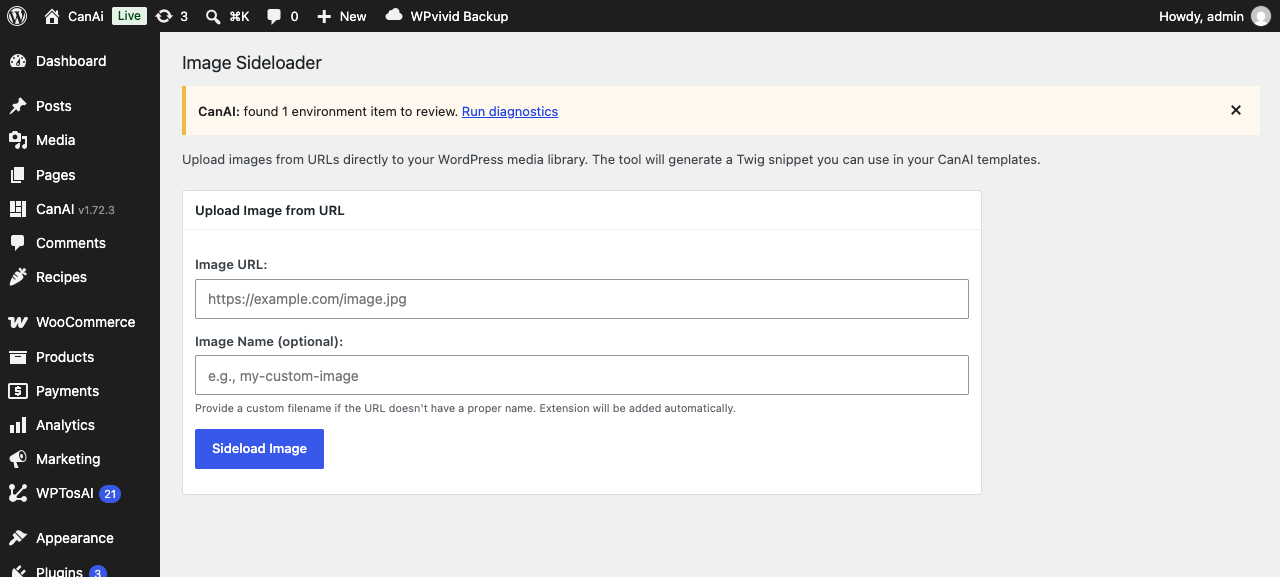
Image Sideloader.
Front-end result

A CanAI-rendered storefront page.
Related
- Easy onboarding — install and first page in minutes
- Plugin homepage: wpcanai.web.app